笔者已将本节的代码上传至 Github ,大家可以结合着学习。以下内容是对官方文档 的翻译。
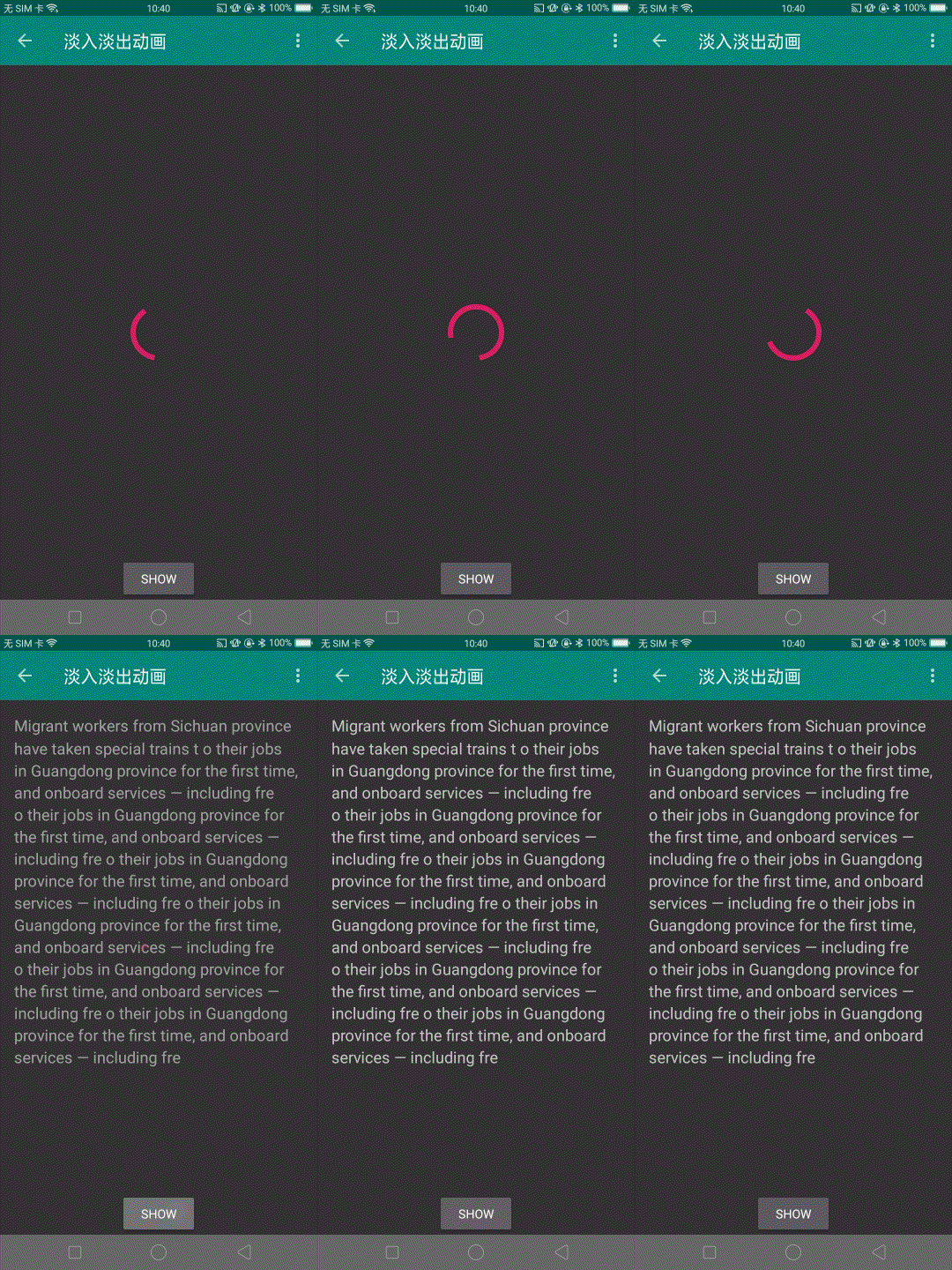
1 淡入淡出动画 淡入淡出动画顾名思义是在一个 View 或者 ViewGroup 消失时,另外一个View同步显示的动画。本节采用ViewPropertyAnimator实现淡入淡出动画,从Android 3.1 (API level 12)开始支持 ViewPropertyAnimator。
1.1 创建views 首先,你需要创建两个你需要使用淡入淡出动画的 View。下面创建了一个进度指示 View 和一个可滑动的文本 View:
1
2
3
4
5
6
7
8
9
10
11
12
13
14
15
16
17
18
19
20
21
22
23
24
25
26
27
<FrameLayout xmlns:android="http://schemas.android.com/apk/res/android" android:layout_width="match_parent" android:layout_height="match_parent"> <ScrollView xmlns:android="http://schemas.android.com/apk/res/android" android:id="@+id/content" android:layout_width="match_parent" android:layout_height="match_parent"> <TextView style="?android:textAppearanceMedium" android:lineSpacingMultiplier="1.2" android:layout_width="match_parent" android:layout_height="wrap_content" android:text="@string/lorem_ipsum" android:padding="16dp" /> </ScrollView> <ProgressBar android:id="@+id/loading_spinner" style="?android:progressBarStyleLarge" android:layout_width="wrap_content" android:layout_height="wrap_content" android:layout_gravity="center" /> </FrameLayout>
1.2 创建淡入淡出动画 分为3个步骤:GONE。这不仅能够避免该 View 在动画开始之前占用 layout 空间,同时也避免了不必要的 layout 计算。config_shortAnimTime属性值。这个属性值表示标准的短暂动画时长,这个时长是很理想的数值对于频繁使用的动画来说。除此之外,还有config_longAnimTime和config_mediumAnimTime 可供选择。
下面的代码使用了之前创建的 layout 作为活动的 content view:
1
2
3
4
5
6
7
8
9
10
11
12
13
14
15
16
17
18
19
20
21
22
23
24
25
public class CrossfadeActivity extends Activity { private View contentView; private View loadingView; private int shortAnimationDuration; ... @Override protected void onCreate(Bundle savedInstanceState) { super.onCreate(savedInstanceState); setContentView(R.layout.activity_crossfade); contentView = findViewById(R.id.content); loadingView = findViewById(R.id.loading_spinner); // Initially hide the content view. contentView.setVisibility(View.GONE); // Retrieve and cache the system's default "short" animation time. shortAnimationDuration = getResources().getInteger( android.R.integer.config_shortAnimTime); } ... }
1.3 添加淡入淡出动画 最后,我们要实现淡入淡出动画还需要如下3个步骤:VISIBLE(该 View 之前的 visibility 为GONE)。这一步让该 View 处于可见但完全透明的状态。Animator.AnimatorListener的onAnimationEnd()方法中设置淡出view 的 visibility 属性为GONE。注意,虽然该 View 已经完全透明,但是设置属性 visibility 为GONE不仅可以阻止该 View 占用 layout 空间,同时还避免了不必要的 layout 计算。
1
2
3
4
5
6
7
8
9
10
11
12
13
14
15
16
17
18
19
20
21
22
23
24
public class CrossfadeActivity extends Activity { private View contentView; private View loadingView; private int shortAnimationDuration; ... private void crossfade() { contentView.setAlpha(0f); contentView.setVisibility(View.VISIBLE); contentView.animate() .alpha(1f) .setDuration(shortAnimationDuration) .setListener(null); loadingView.animate() .alpha(0f) .setDuration(shortAnimationDuration) .setListener(new AnimatorListenerAdapter() { @Override public void onAnimationEnd(Animator animation) { loadingView.setVisibility(View.GONE); } }); } }
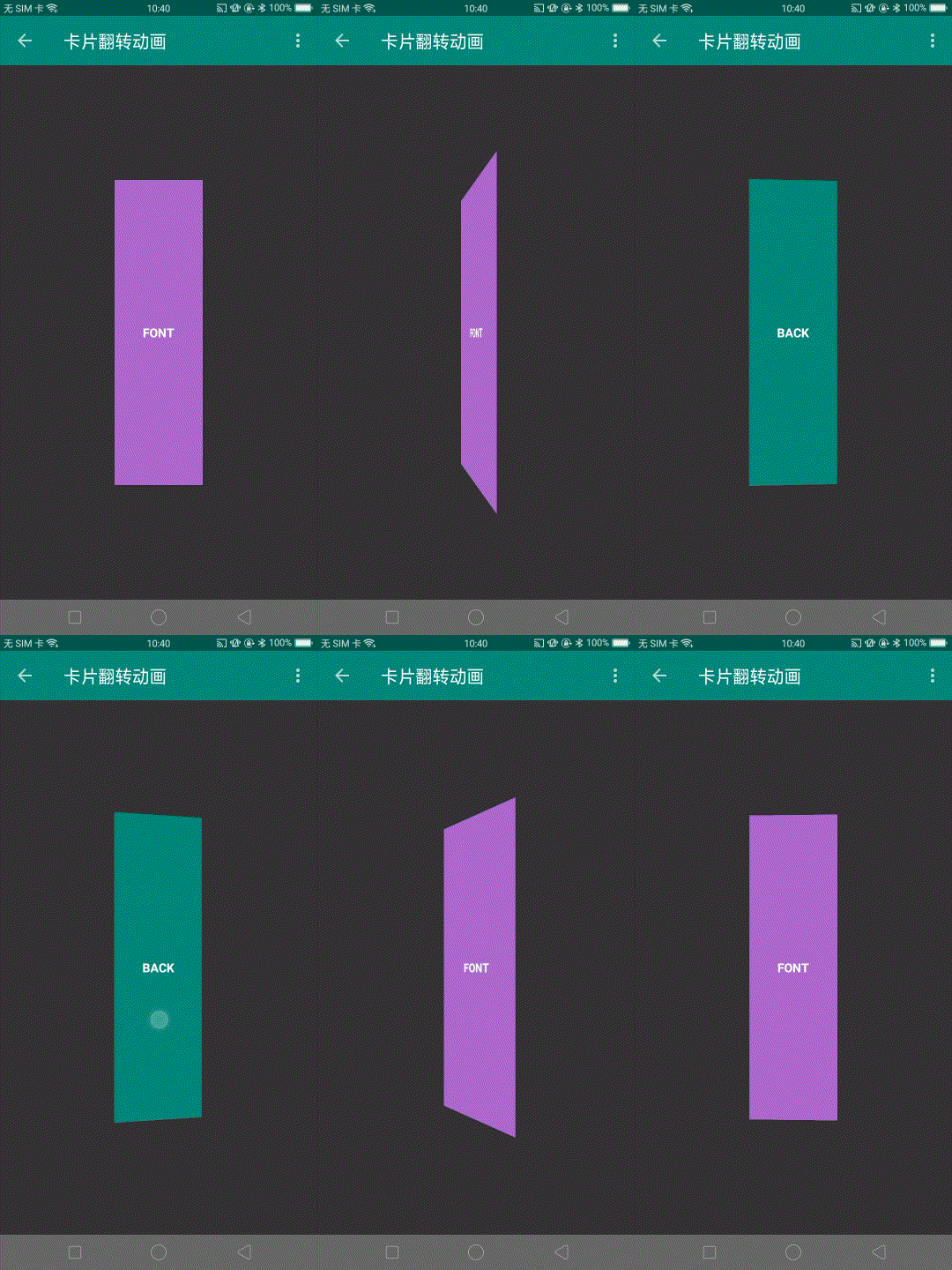
2 翻牌动画 该动画适用于在两个 View 之间实现类似翻牌的动效。本节的翻牌动画借助了FragmentTransaction类的setCustomAnimations方法,该类从 Android3.0(API等级11) 开始可以调用。当然,你也可以借助其他的方式实现咯。
2.1 创建Animator object 为了创建翻牌动画,你一共需要四个 animators。两个分别控制前面的内容(卡片正面)从左边翻出和从左边翻入。同时需要两个 animators 分别控制后面的内容(卡片反面)从右边翻入和右边翻出。
1
2
3
4
5
6
7
8
9
10
11
12
13
14
15
16
17
18
19
20
21
22
23
24
<set xmlns:android="http://schemas.android.com/apk/res/android"> <!-- Before rotating, immediately set the alpha to 0. --> <objectAnimator android:valueFrom="1.0" android:valueTo="0.0" android:propertyName="alpha" android:duration="0" /> <!-- Rotate. --> <objectAnimator android:valueFrom="-180" android:valueTo="0" android:propertyName="rotationY" android:interpolator="@android:interpolator/accelerate_decelerate" android:duration="@integer/card_flip_time_full" /> <!-- Half-way through the rotation (see startOffset), set the alpha to 1. --> <objectAnimator android:valueFrom="0.0" android:valueTo="1.0" android:propertyName="alpha" android:startOffset="@integer/card_flip_time_half" android:duration="1" /> </set>
card_flip_left_out.xml
1
2
3
4
5
6
7
8
9
10
11
12
13
14
15
16
17
<set xmlns:android="http://schemas.android.com/apk/res/android"> <!-- Rotate. --> <objectAnimator android:valueFrom="0" android:valueTo="180" android:propertyName="rotationY" android:interpolator="@android:interpolator/accelerate_decelerate" android:duration="@integer/card_flip_time_full" /> <!-- Half-way through the rotation (see startOffset), set the alpha to 0. --> <objectAnimator android:valueFrom="1.0" android:valueTo="0.0" android:propertyName="alpha" android:startOffset="@integer/card_flip_time_half" android:duration="1" /> </set>
card_flip_right_in.xml
1
2
3
4
5
6
7
8
9
10
11
12
13
14
15
16
17
18
19
20
21
22
23
24
<set xmlns:android="http://schemas.android.com/apk/res/android"> <!-- Before rotating, immediately set the alpha to 0. --> <objectAnimator android:valueFrom="1.0" android:valueTo="0.0" android:propertyName="alpha" android:duration="0" /> <!-- Rotate. --> <objectAnimator android:valueFrom="180" android:valueTo="0" android:propertyName="rotationY" android:interpolator="@android:interpolator/accelerate_decelerate" android:duration="@integer/card_flip_time_full" /> <!-- Half-way through the rotation (see startOffset), set the alpha to 1. --> <objectAnimator android:valueFrom="0.0" android:valueTo="1.0" android:propertyName="alpha" android:startOffset="@integer/card_flip_time_half" android:duration="1" /> </set>
card_flip_right_out.xml
1
2
3
4
5
6
7
8
9
10
11
12
13
14
15
16
17
<set xmlns:android="http://schemas.android.com/apk/res/android"> <!-- Rotate. --> <objectAnimator android:valueFrom="0" android:valueTo="-180" android:propertyName="rotationY" android:interpolator="@android:interpolator/accelerate_decelerate" android:duration="@integer/card_flip_time_full" /> <!-- Half-way through the rotation (see startOffset), set the alpha to 0. --> <objectAnimator android:valueFrom="1.0" android:valueTo="0.0" android:propertyName="alpha" android:startOffset="@integer/card_flip_time_half" android:duration="1" /> </set>
2.2 创建view 卡片的正反面是两个独立的 layout,方便之后将这两个独立的 layout 分别绑定到两个 Fragment 上。下面是这两个独立的 layout 之一:
1
2
3
4
5
6
7
8
9
10
11
12
13
14
15
16
17
18
19
20
<?xml version="1.0" encoding="utf-8"?> <LinearLayout xmlns:android="http://schemas.android.com/apk/res/android" android:layout_width="match_parent" android:layout_height="match_parent" android:padding="130dp"> <RelativeLayout android:layout_width="match_parent" android:layout_height="match_parent" android:background="#a6c"> <TextView android:layout_width="wrap_content" android:layout_height="wrap_content" android:layout_centerInParent="true" android:text="FONT" android:textColor="#FFFFFF" android:textStyle="bold" /> </RelativeLayout> </LinearLayout>
下面是另一个:
1
2
3
4
5
6
7
8
9
10
11
12
13
14
15
16
17
18
19
20
<?xml version="1.0" encoding="utf-8"?> <LinearLayout xmlns:android="http://schemas.android.com/apk/res/android" android:layout_width="match_parent" android:layout_height="match_parent" android:padding="130dp"> <RelativeLayout android:layout_width="match_parent" android:layout_height="match_parent" android:background="@color/colorPrimary"> <TextView android:layout_width="wrap_content" android:layout_height="wrap_content" android:layout_centerInParent="true" android:text="BACK" android:textColor="#FFFFFF" android:textStyle="bold" /> </RelativeLayout> </LinearLayout>
2.3 创建fragments 创建两个 Fragment 作为卡片的正反面,将之前的两个 layout 分别绑定到这两个 Fragment 上。然后将这两个 Fragment 作为 FragmentActivity 的展示内容,该 Activity 就是你要展示翻牌动画的页面。下面是两个 Fragment 的定义:
1
2
3
4
5
6
7
8
9
10
11
12
13
14
15
16
17
18
19
20
21
22
23
24
public class CardFlipActivity extends FragmentActivity { ... /** * A fragment representing the front of the card. */ public class CardFrontFragment extends Fragment { @Override public View onCreateView(LayoutInflater inflater, ViewGroup container, Bundle savedInstanceState) { return inflater.inflate(R.layout.fragment_card_front, container, false); } } /** * A fragment representing the back of the card. */ public class CardBackFragment extends Fragment { @Override public View onCreateView(LayoutInflater inflater, ViewGroup container, Bundle savedInstanceState) { return inflater.inflate(R.layout.fragment_card_back, container, false); } } }
2.4 实现动画 现在,你需要在 Activity 中展示这两个 Fragment 的内容。为了实现此需求,你应该为你的 Activity 创建一个 layout。下面的例子在此 layout 中创建了一个FrameLayout作为 Fragment 的容器:
1
2
3
4
<FrameLayout xmlns:android="http://schemas.android.com/apk/res/android" android:id="@+id/container" android:layout_width="match_parent" android:layout_height="match_parent" />
在 Activity 中,将以上的 layout 设置为 content view。然后在 Activity 的oncreate阶段显示卡片的正面内容。下面的例子展示了这一过程:
1
2
3
4
5
6
7
8
9
10
11
12
13
14
15
16
public class CardFlipActivity extends FragmentActivity { @Override protected void onCreate(Bundle savedInstanceState) { super.onCreate(savedInstanceState); setContentView(R.layout.activity_activity_card_flip); if (savedInstanceState == null) { getSupportFragmentManager() .beginTransaction() .add(R.id.container, new CardFrontFragment()) .commit(); } } ... }
现在你已经展示了卡片的正面,接下来要做的就是如何使用翻牌动画翻开卡片的背面,当卡片翻转到背面后,再次将其翻转到正面。下面的代码实现这一功能。
1
2
3
4
5
6
7
8
9
10
11
12
13
14
15
16
17
18
19
20
21
22
23
24
25
26
27
28
29
30
31
32
public class CardFlipActivity extends FragmentActivity { ... private void flipCard() { if (showingBack) { //Flip to the font. showingBack = false; getSupportFragmentManager() .beginTransaction() //注意setCustomAnimations()方法必须在add、remove、replace调用之前被设置,否则不起作用。 .setCustomAnimations( R.animator.card_flip_left_in, R.animator.card_flip_left_out, 0, 0) .replace(R.id.flContainer, new CardFrontFragment()) .commit(); return; } // Flip to the back. showingBack = true; getSupportFragmentManager() .beginTransaction() .setCustomAnimations( R.animator.card_flip_right_in, R.animator.card_flip_right_out, 0, 0) .replace(R.id.flContainer, new CardBackFragment()) .commit(); }
最终实现的效果:
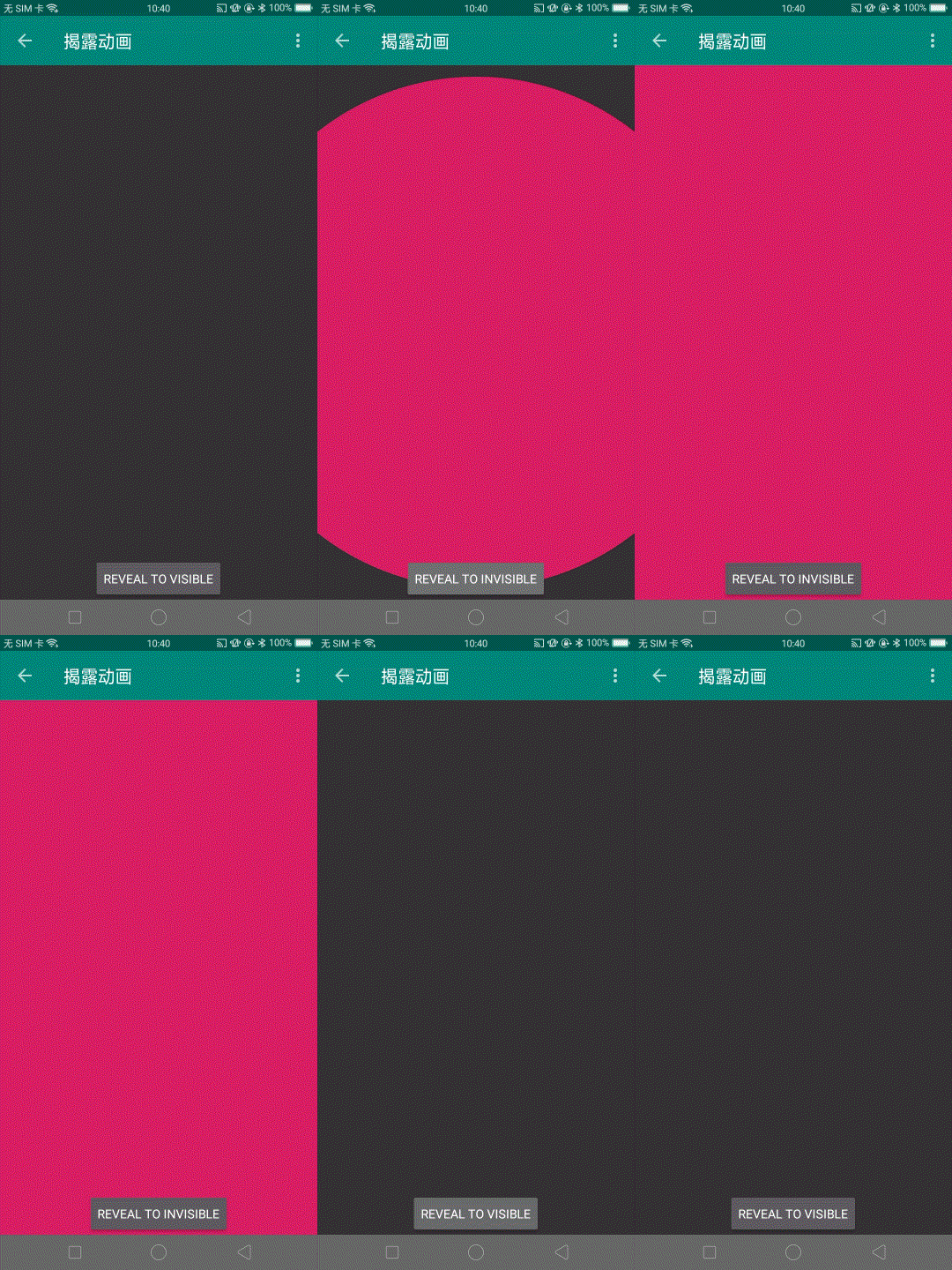
3 揭露动画 当需要显示或者隐藏view时,揭露动画给用户提供了一种视觉上的延续。ViewAnimationUtils.createCircularReveal()方法可以帮助你实现此动画,此方式在 Android 5.0(API level 21) 以上提供。
1
2
3
4
5
6
7
8
9
10
11
12
13
// previously invisible view View myView = findViewById(R.id.my_view); if (Build.VERSION.SDK_INT >= Build.VERSION_CODES.LOLLIPOP) { int cx = myView.getWidth() / 2; int cy = myView.getHeight() / 2; float finalRadius = (float) Math.hypot(cx, cy); Animator anim = ViewAnimationUtils.createCircularReveal(myView, cx, cy, 0f, finalRadius); myView.setVisibility(View.VISIBLE); anim.start(); } else { // set the view to visible without a circular reveal animation below Lollipop myView.setVisibility(View.VISIBLE); }
ViewAnimationUtils.createCircularReveal()动画一共有5个参数。第一个参数表示目标 View。接下来的两个参数代表了揭露动画开始的圆心坐标。一般地,这通常是目标 View的中心点坐标,但是你也可以将它定义为你的手指触摸点的坐标,从而使得揭露动画从你的手指触摸点开始揭露。第四个参数表示动画开始的圆形区域半径。
1
2
3
4
5
6
7
8
9
10
11
12
13
14
15
16
17
18
19
// previously visible view final View myView = findViewById(R.id.my_view); if (Build.VERSION.SDK_INT == Build.VERSION_CODES.LOLLIPOP) { int cx = myView.getWidth() / 2; int cy = myView.getHeight() / 2; float initialRadius = (float) Math.hypot(cx, cy); Animator anim = ViewAnimationUtils.createCircularReveal(myView, cx, cy, initialRadius, 0f); anim.addListener(new AnimatorListenerAdapter() { @Override public void onAnimationEnd(Animator animation) { super.onAnimationEnd(animation); myView.setVisibility(View.INVISIBLE); } }); anim.start(); } else { // set the view to invisible without a circular reveal animation below Lollipop myView.setVisibility(View.INVISIBLE); }
实例中,揭露动画的初始半径足够覆盖整个目标视图,所以初始时的视图是完全可见的。最终的半径设置为0,则表示动画结束后会隐藏目标视图。注意,当动画结束后要将目标视图的 visiblility 属性设置为INVISIBLE以提高性能。